Fleetfold Verify
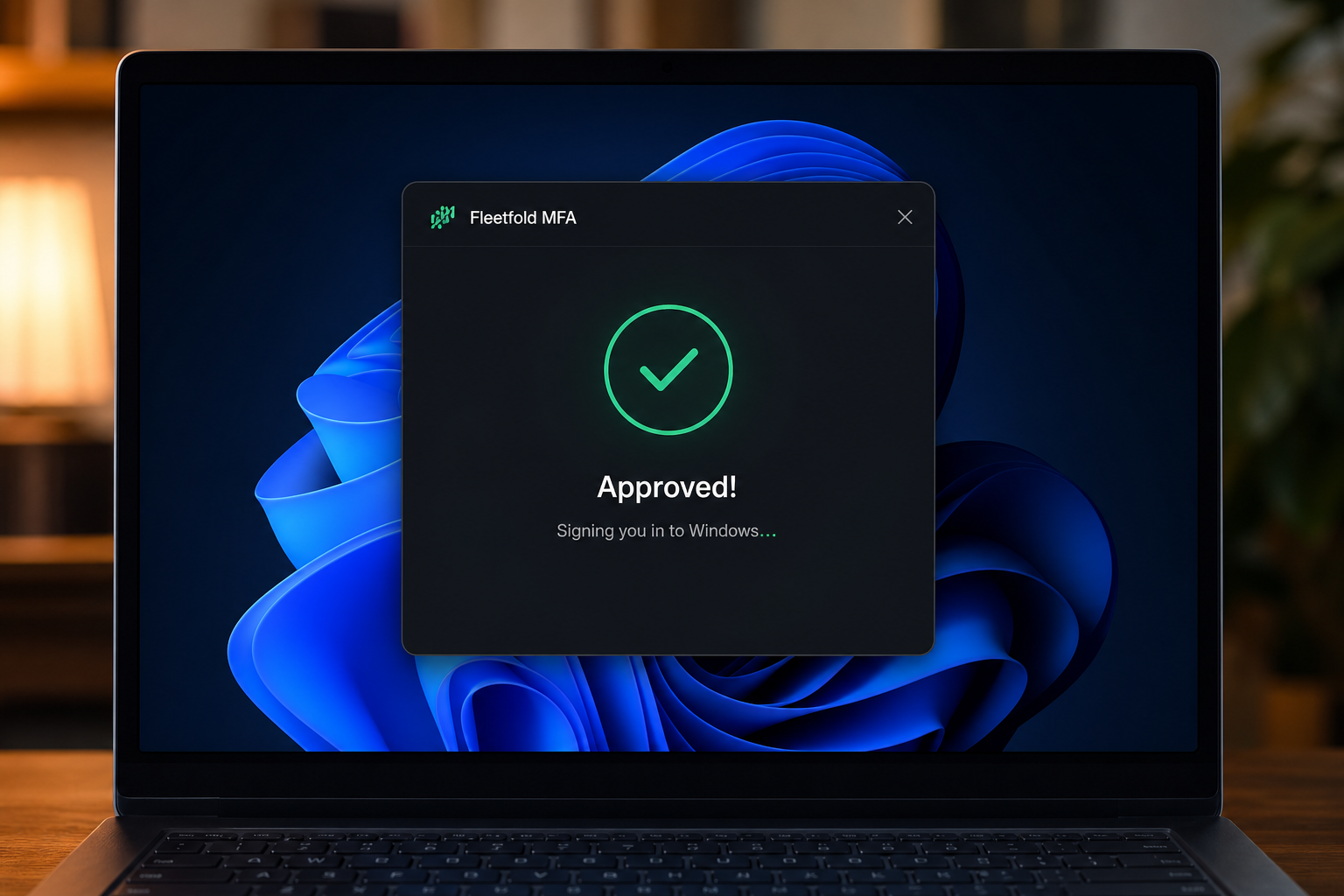
1. Windows requests MFA
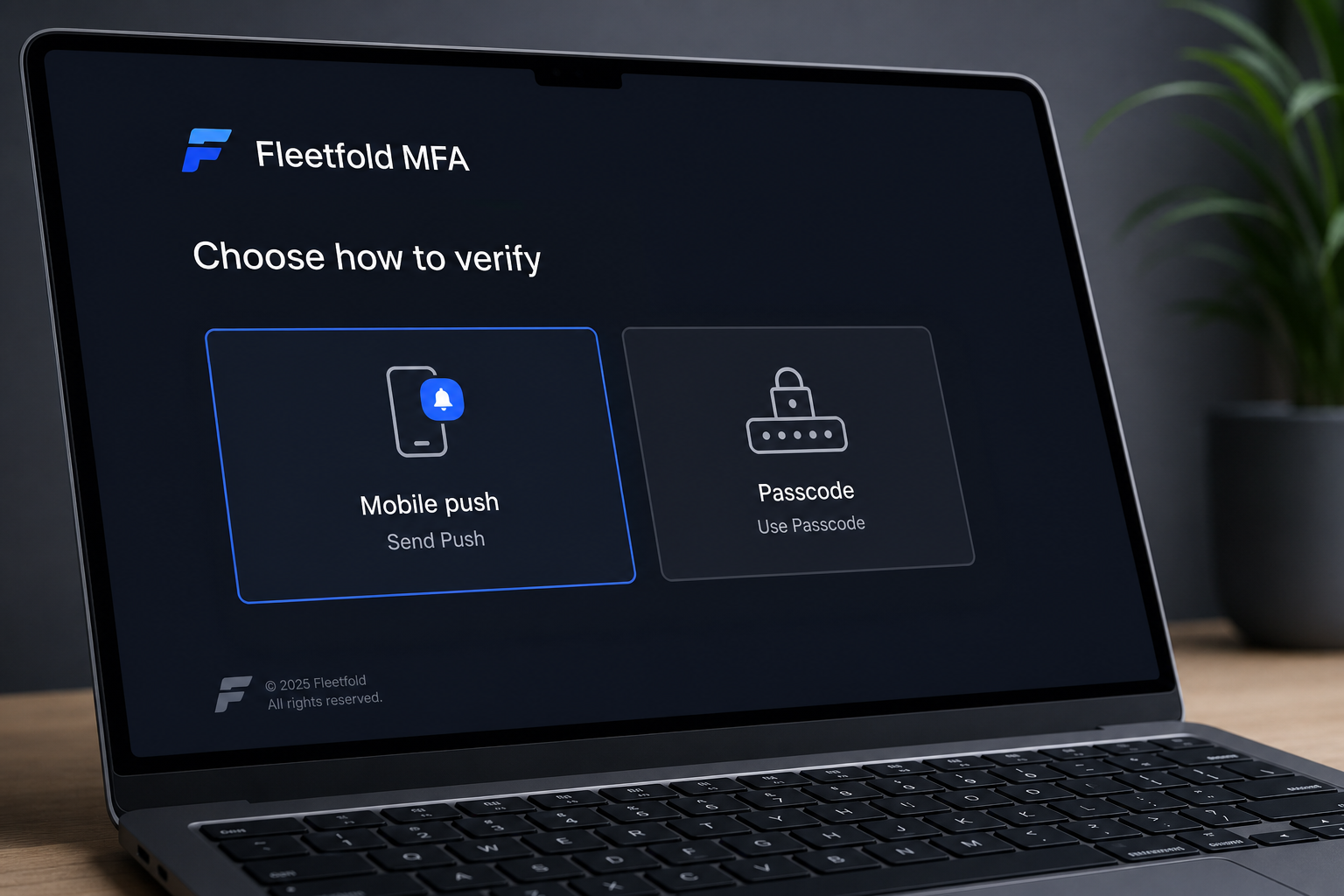
After the password succeeds, the Credential Provider creates a push challenge. With verified push enabled, the PC also shows a short code that must be typed on the phone.
Users stay in a familiar Windows experience. IT gets a cryptographic challenge tied to that user, hostname, and policy.
2. The phone receives the request
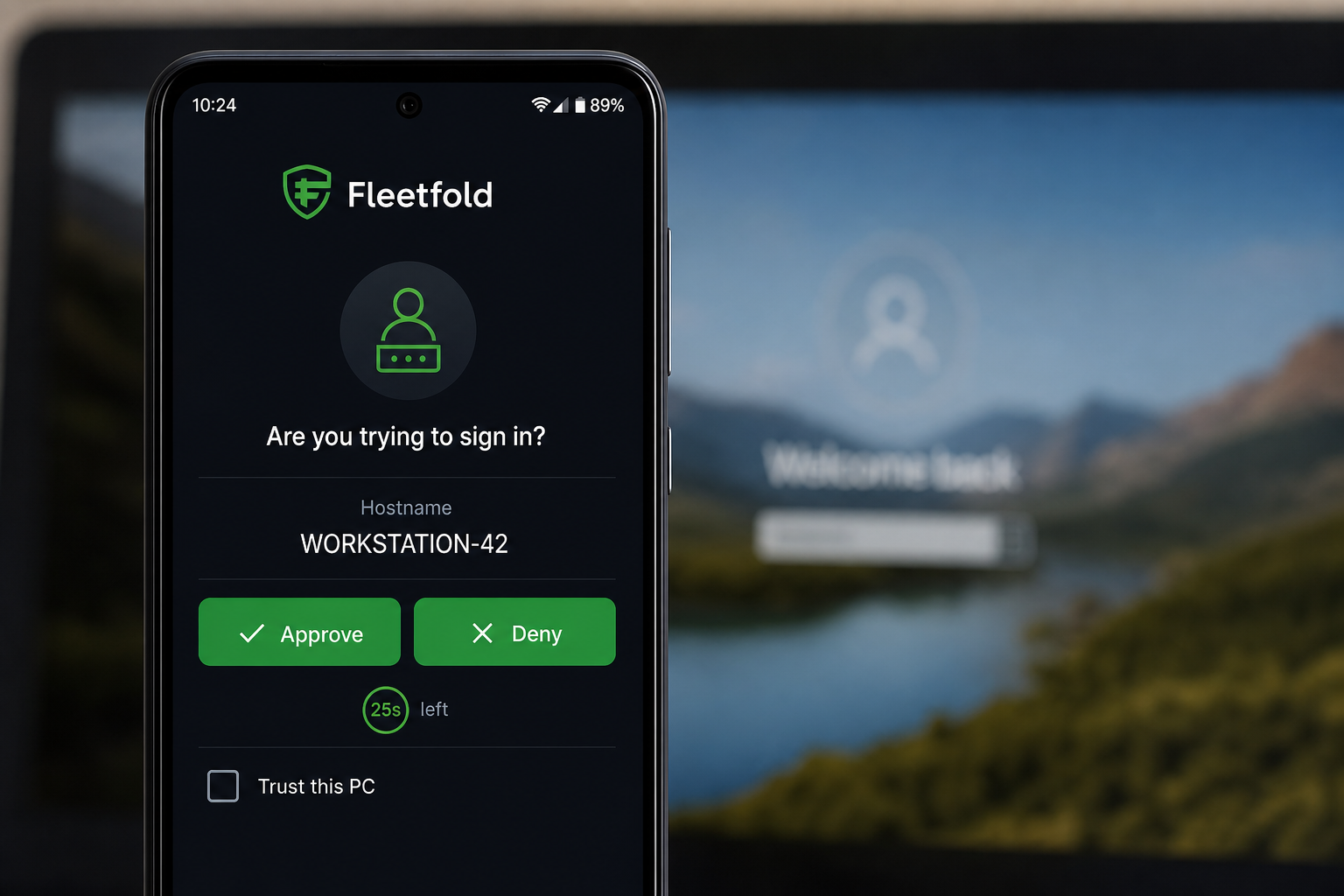
When the app is open, delivery is near-instant. When the app is backgrounded, Firebase Cloud Messaging wakes the device with a high-priority notification.
The user sees who is signing in and which computer started the request, then Approves, Denies, or reports fraud.
Install on each Windows PC
Deploy the Fleetfold agent and Credential Provider from the downloads center, then reboot so Winlogon loads the provider.
Enroll users on Android
IT sends an invite. The user installs the app, sets a PIN, and begins receiving sign-in requests.
Sign in every day
Password, then push or passcode. Optional Windows Hello remains available when your policy allows coexistence.
Optional: block USB storage
Turn on Block USB storage in Policies. Enrolled PCs deny removable disks within about 20 seconds. Same agent, no extra install.
3. IT retains full visibility
The admin console covers enrollment, policies, devices, audit history, and Security Ops. Operators can prove every challenge and respond when risk rises.
Sign in to console